Tools Manager: Auto-Launch Your Sim Racing Stack

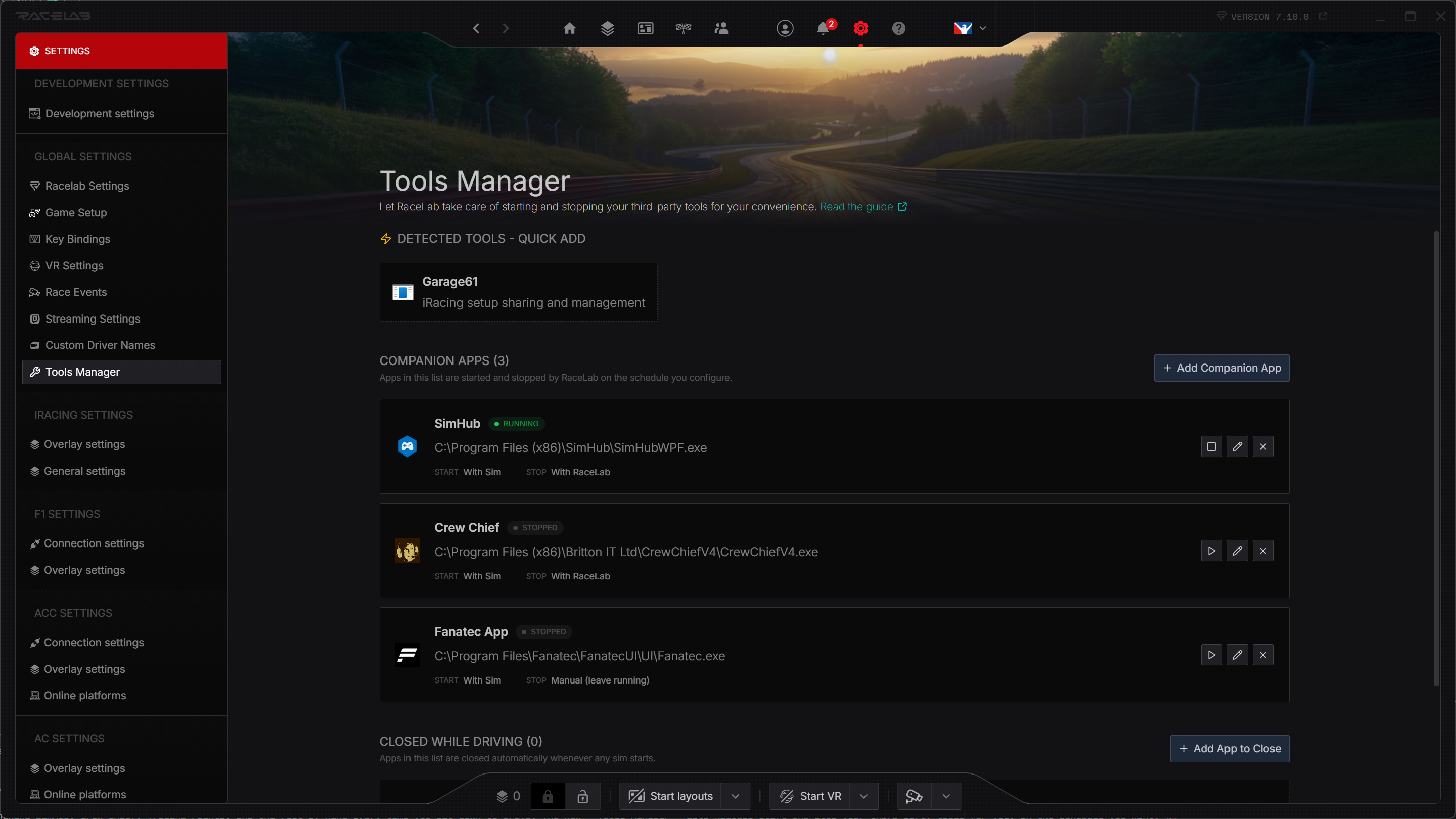
Stop launching SimHub, Crew Chief, Trading Paints, and the rest by hand every time you sit down to drive. The new Tools Manager lets RaceLab start and stop your third-party tools for you, on the schedule you want. 🛠️
Open it via Settings → Tools Manager.
What it does
- Auto-launch tools when RaceLab starts or when sim is started
- Auto-stop tools when RaceLab closes or when sim is closed
- Auto-detect popular tools already installed on your system - add them with one click
- Closed While Driving quietly closes any apps you don't want running once a sim starts
- Pick from running processes to add a tool by selecting it from a live list
- Configurable termination with graceful close, double-close for tray apps, force kill, or kill-by-name
Two kinds of tools
The Tools Manager handles two distinct workflows side by side:
- Apps - RaceLab starts and/or stops the tool for you (with RaceLab, with the sim, or manually)
- Closed While Driving - RaceLab never launches the app, it only closes it when a sim starts. Perfect for browsers, chat apps, or anything else that shouldn't be running while you race
Per-sim control
Want Crew Chief to launch only for iRacing? Set Auto Start to With Sim and pick iRacing in the Sim Filter. Want a telemetry uploader to keep running after you disconnect so it can finish pushing your laps? Set Auto Stop to Manual and let it do its thing.
Getting started
- Update RaceLab to v7.10.0
- Open Settings → Tools Manager
- Click any tool in Detected Tools - Quick Add, or hit + Add to configure your own
- Tweak the auto start/stop and termination settings to taste
For the full walkthrough - including advanced settings, termination modes, and how to request a new auto-detection template - head over to the Tools Manager guide.
Got feedback or a tool you'd like us to auto-detect? Let us know on Discord!